Travel maps
Make a Travel Map of Places You Have Been and Want to Go
A hometown, an old trip, or somewhere you hope to go next is enough to begin. Make a map in your browser, give it your own style, and share it when you are ready.
Travel Map Maker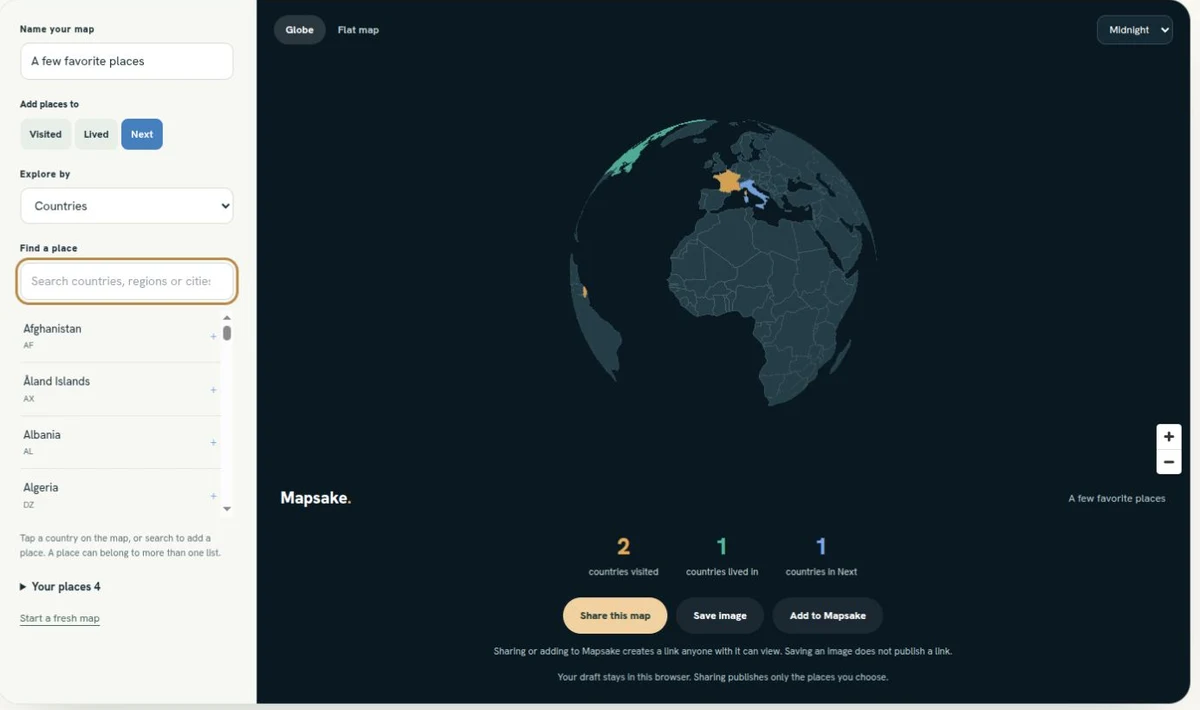
Start with somewhere you remember
A first trip abroad. The town you grew up in. Somewhere you keep saying you will visit next. You probably do not need a photo library or an old itinerary to put a few meaningful places on a map.
The free Travel Map Maker lets you start there. Add countries, regions, or cities, choose a globe or a flat map, and make something you can save or send to a friend. It works in your browser without an account or an app download.
Make your first travel map
Open the tool and give your map a name. "My world, so far" is a good place to start, but a family trip, a year abroad, or a list of places you hope to see works just as well.
- Choose Visited for places you have been, Lived for places you have called home, or Next for places still on your list.
- Tap a country on the map to add it to the selected list. You can also find it in Find a place.
- To add more detail, change Explore by to Regions or Cities, choose a country, and search within it.
- Open Your places to check your selections and remove anything that does not belong.
You can keep these lists together. A country might be somewhere you once lived and somewhere you want to return to. Adding it to Next does not erase its place in your past.
There is no need to settle every travel-counting question before you begin. If you do not count an airport connection as a visit, leave it out. This is your record, and you can decide what belongs in it.
Find a view that feels like yours
Use Globe to turn the world around and explore your places. Choose Flat map when you want to see more of the world at once. The Midnight, Paper, and Ocean themes give the same travel history a different feel.
When you like the result, choose Save image. It gives you a picture you can keep, send in a message, or use in a social post. Saving an image does not create a public map link.
Your unfinished map stays in the same browser so you can come back to it. It does not follow you automatically to another device, and clearing that browser's saved website data can remove the draft.
Share a map someone can explore
Choose Share this map when you want to send a link instead of a picture. The link opens a read-only map that someone else can explore without installing Mapsake.
Before sharing, check the name and all the places in Visited, Lived, and Next. Anyone with the link can see that snapshot, including a hometown or a future destination if you added it. Your photo library is not part of it.
The shared map is a snapshot. Changing your draft later does not change a link you already sent. Share again when you want to send a new version.
You can use Unpublish this link from the browser that created it to stop that link from working. A saved image, screenshot, or copy someone already made will still exist.
Keep building in Mapsake
The browser tool is enough for a quick map. If you want to keep a fuller travel record on your Apple devices, choose Add to Mapsake. It prepares a shared snapshot and a QR code for the places you selected.
Scan the code with your iPhone camera, or use Open Mapsake on a device with the app installed. Importing a browser map requires Mapsake 1.16 or newer. Mapsake shows the places for review before you choose to add them; opening a link does not add anything by itself.
If you need to install or update the app first, keep the map link and open it again afterward. The website cannot carry the map through an App Store installation automatically.
From there, you can add dates, notes, photos, and journeys, or bring in travel history you have already recorded elsewhere. Mapsake is free, with no ads or subscription and no required account for the core app.
Already have years of travel photos?
You do not have to choose every place by hand. The separate Photo Map Maker can plot photos that contain location information, directly in your browser. Use that when the pictures are your starting point; use the Travel Map Maker when you want to choose the places yourself.
An old trip without photos still counts. So does a place that mattered long before you owned a smartphone. Start with what you remember, leave room for what comes next, and make your map.