iPhone photo guide
Search iPhone Photos by Place, Year, Camera, and More
You do not need to remember the exact date or scroll through years of pictures. Start with the place, year, camera, or detail you remember, then use the right search tool to narrow the library.
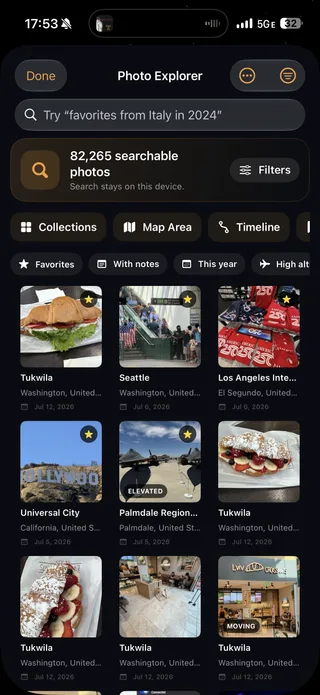
Start with the detail you actually remember
The fastest way to find an old iPhone photo is to search with the clue you still have: a place, year, person, event, or subject. Open Photos, tap Search, and try something simple such as “Lisbon,” “October 2023,” “beach,” or the name of a person in your People & Pets collection.
That is usually better than scrolling backward through thousands of images. If the first search is too broad, add another detail or choose one of the suggestions Photos offers. If it is too narrow, remove a word and search the place or year by itself.
The right tool depends on what you remember:
| What you remember | Best place to start |
|---|---|
| A city, date, person, pet, event, or subject | Search in Apple Photos |
| A vacation and roughly which year it happened | Trips or Years in Apple Photos |
| The part of the world where you took it | The photo map in Apple Photos |
| A place, year, and camera together | Photo Explorer in Mapsake |
| An area on a map, but not the place name | Map Area in Mapsake |
| A private note, tag, rating, or color label | Photo Explorer in Mapsake |
Apple Photos is the best first stop for everyday searches across your full library. Mapsake becomes useful when the question is more like a travel archivist's question: “Which favorite photos did I take in Italy in 2024 with this camera?”
How to search iPhone photos by place, year, or subject
In current versions of iOS, open Photos and tap Search. You can search using several kinds of clues:
- Date: a day, month, or year, such as “June 2022” or “2025”
- Place: a city, state, country, landmark, or recognized business name
- Person or pet: a name you have assigned in People & Pets
- Subject: a broad category such as “mountains,” “sunset,” “food,” or “dog”
- Event: a concert, sporting event, or other recognized occasion
Apple's guide to searching photos and videos is the best reference if a button has moved in your version of iOS.
Start with the most distinctive fact. “Paris” is more useful than “vacation,” and “Paris 2023” may be more useful than either word alone. Search suggestions can help you refine a result without needing to know the exact wording Apple expects.
Search is not a perfect description of every image. Recognition can miss a subject, and an image cannot appear in a location search if it has no location attached. When a search comes back empty, try the date, place, and subject separately before assuming the photo is gone.
How to find iPhone photos by location on a map
If you remember where you were but not what the place was called, browse the map instead of guessing search terms.
- Open Photos and go to your library.
- Open the sort and filter controls.
- Choose Show Map.
- Move and zoom the map, then tap a group of photos to inspect that area.
Only photos with embedded GPS information can appear there. Apple explains this limitation in its guide to browsing photos by location.
There is also a useful shortcut when you have found one photo from the right day. Open it, swipe up or tap Info, tap its map or address, and choose Show Nearby Photos. This can reveal the rest of a walk, meal, or day trip even when you do not remember the neighborhood's name.
Location search is especially good for questions such as:
- “Where are my photos from Mexico City?”
- “What did I take near this national park?”
- “Can I see every photo from this part of Japan?”
If the map is missing an image you know you took there, check the image's information before changing any settings. A screenshot, scan, downloaded picture, or photo shared by someone else may not contain your location at all.
How to find photos from a trip or a particular year
For a vacation rather than a single image, open Photos, go to Collections, and look for Trips. Apple groups travel photos into trips and lets you browse by year. The exact grouping depends on the dates and locations present in the library, so a long trip may be split or a short one may be folded into a larger collection. See Apple's current Trips guide for the latest layout.
The Years and Months views are better when you know when something happened but iOS did not recognize it as a trip. Those views are curated, which means they may hide screenshots, receipts, and similar clutter. Switch to the full library when you need to see absolutely everything from that period.
A reliable sequence is:
- Search the destination name.
- Check Trips if it was a vacation.
- Browse the year or month if the trip grouping is incomplete.
- Open one correct image and use Show Nearby Photos to recover the surrounding day.
This approach also helps when a trip crossed several cities. Searching each city separately can find images that a single vacation name cannot.
How to check the date, place, and camera for one photo
Sometimes the easiest way to find a group is to inspect one known photo first. Open the image in Photos and swipe up, or tap the Info button. Depending on the file, the information panel can show:
- The date and time
- A map and place name
- The filename
- The iPhone or camera model
- Camera details such as lens, focal length, aperture, and shutter speed
That camera line gives you the exact wording to try elsewhere. A phone you remember as “my old iPhone” may be stored as “iPhone 12 Pro,” while an imported camera may use a model name that is less familiar.
If the date or location is wrong, open the More menu and choose Adjust Date & Time or Adjust Location. Apple documents both individual and batch changes in its photo information guide. Correcting the source metadata is usually better than memorizing the mistake because the improved date or place can help future searches and map views too.
Do not add a location just to make a search work unless you are confident it is correct. Photo locations are precise personal data, and a confident-looking guess can quietly create a false travel record.
Can you search iPhone photos by camera model?
Sometimes, but not consistently in Apple Photos. Try the exact camera name from the Info panel, such as “iPhone 15 Pro” or the model name of an imported camera, in the Photos search box. It may return useful results, but Apple does not currently list camera model as a supported search category in its iPhone search guide. Treat it as a convenient attempt, not a guaranteed filter.
If you need a dependable list, Mapsake's Photo Explorer has a dedicated Camera model filter for the travel photos it has indexed. You can select one camera, several cameras, or search the exact model name together with a place and year.
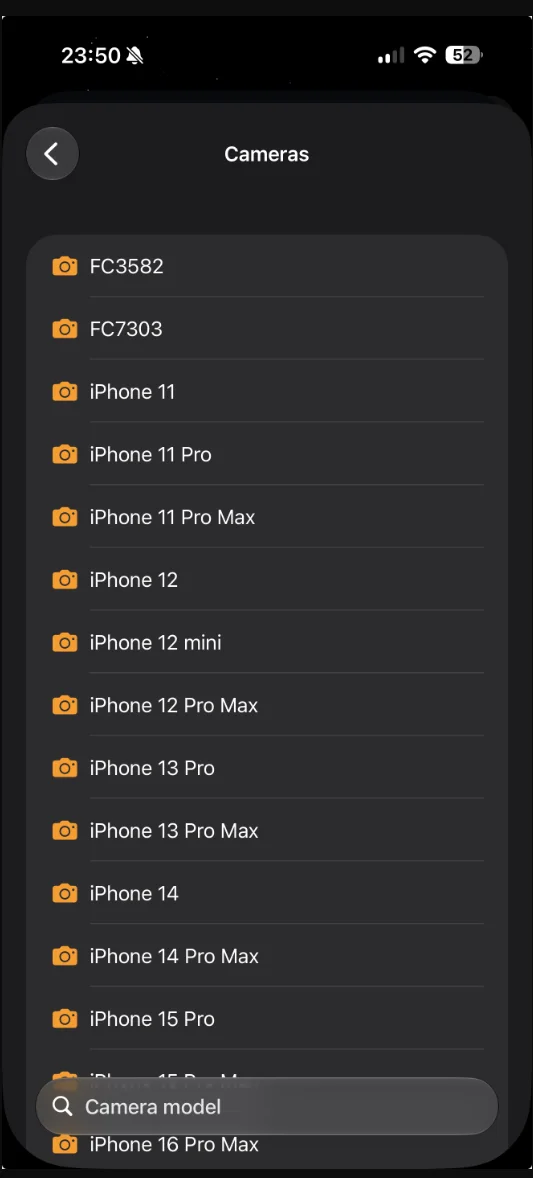
Photo Explorer builds the Camera model list from the metadata available in the indexed library, so the names match the cameras you can actually search.
This distinction matters. Apple Photos searches the full visual library and is excellent at common subjects and people. Mapsake searches a smaller, structured travel index built from known location, date, source, camera, and organization details. It does not try to replace Apple's general image recognition.
Search mapped travel photos with Mapsake Photo Explorer
First, build your travel map from Apple Photos or connect another supported photo source. Mapsake needs an indexed photo with a location before it can include that item in Photo Explorer.
Then:
- Open the Atlas.
- Tap the stacked-photo button labeled Explore photos.
- Enter a search in Photo Explorer, or tap Filters for exact controls.
- Open a result to inspect the photo and its travel details.
Useful searches include:
- “favorites from Italy in 2024”
- “iPhone 15 Pro Japan 2023”
- “Immich photos from Portugal”
- “photos with notes from last year”
- “photos above 3,000 meters”
- “photos rated 4 stars from France”
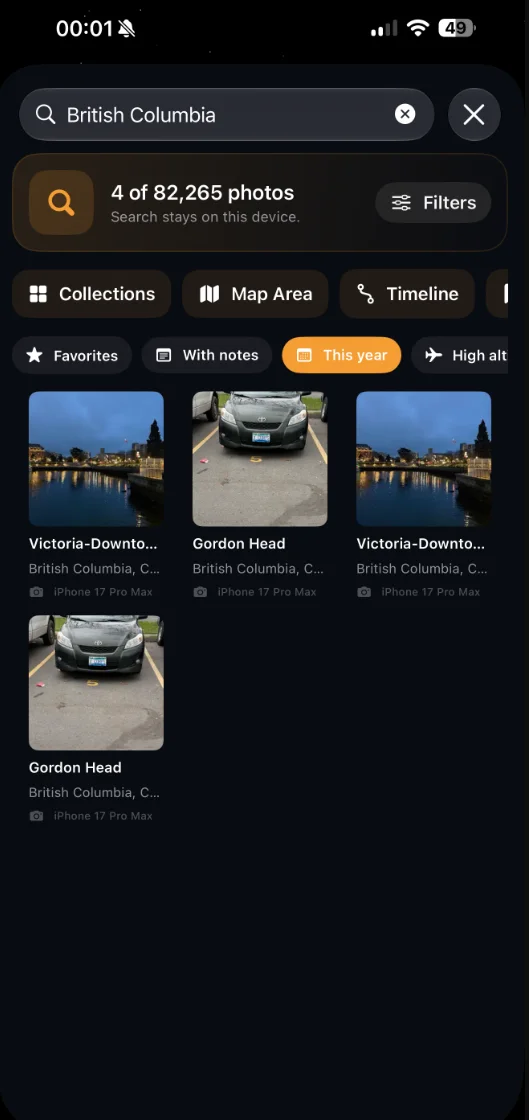
Here, a search for British Columbia combined with the This year filter narrows 82,265 indexed photos to four results. Each card also shows the matched place and camera model.
You can combine the text box with filters for Apple Photos or Immich, date, camera model, favorites, notes, screenshots, edited photos, elevation, speed, private tags, ratings, color labels, and a selected map area. Result cards surface the relevant place, date, camera, note, or other matching detail so it is easier to understand why an image is in the list.
The practical advantage is precision. Instead of searching “Italy,” opening a large result, and manually checking dates and devices, you can ask for the intersection of the details you remember.
Browse your photo library when you do not know what to type
Search boxes are not always the right starting point. Photo Explorer also includes four browsing tools:
- Collections groups indexed photos into trips, countries, cities, cameras, and years.
- Map Area lets you draw the question geographically by moving and sizing a map.
- Timeline arranges the current results by travel date.
- Searches keeps recent searches and any search-and-filter combination you intentionally save.
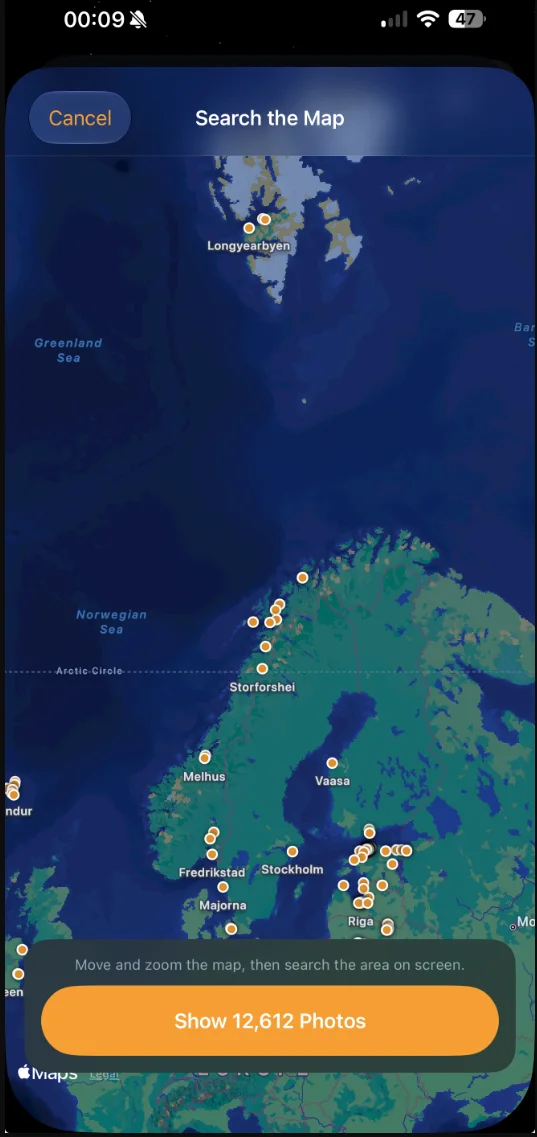
Map Area does not require a place name. Move and zoom until the region you remember fills the screen, then show only the photos inside that visible area.
These views are helpful when your memory is visual or approximate. You may not remember the name of a small town, but you may recognize its position between two cities. You may not remember which camera you packed, but a camera collection can show you the available models.
Filters remain active while you browse. For example, choose a camera first, then open Map Area to see only photographs from that device inside a region. Or turn on Favorites, search a country, and view the result on the Timeline.
Add simple organization that makes future searches easier
The best search term is often one you add yourself. In Mapsake's photo viewer, you can mark an image as a favorite, write a private note, add tags, assign a one-to-five-star rating, or apply a color label.
Use words you will naturally remember later. A note like “first dinner after the overnight train” is easier to rediscover than an elaborate filing code. Tags work well for repeated themes such as “hike,” “family,” “architecture,” or “food.” Ratings can separate the photos you might share from the complete record of a trip.
Mapsake keeps this organization in its own local data rather than rewriting the original photo. It can be included in a Mapsake backup or export, while the derived photo index can be rebuilt from its source. That separation gives personal notes and ratings a durable home without changing the image in Apple Photos or Immich.
What to do when a photo search returns no results
An empty search usually means one of the remembered details does not match the available metadata. Check these in order:
- Make the query broader. Search the country without the camera or year, then add details one at a time.
- Inspect one known photo. Confirm its actual date, location, and camera name in the Info panel.
- Check for location data. A photo without coordinates will not appear in a location map or Mapsake's mapped-photo index.
- Clear old filters. A forgotten camera, source, date, or map-area filter can exclude an otherwise correct result.
- Check the source. An Immich photo will not appear while the source filter is set to Apple Photos, and vice versa.
- Look for Unknown device. Mapsake reads camera information from locally available metadata and does not download a cloud-only original solely to discover its camera model.
- Refresh the index. If you recently imported or corrected photos, allow the source scan to finish before searching again.
For an Apple Photos image with the wrong place, correct it in Photos when you know the answer. When the place is missing, Mapsake's Find Missing Locations tool can look for a strong time-based match among nearby photos. It presents a suggestion for confirmation before writing any location back to Apple Photos; it does not silently guess.
Keep location-based photo search private
Photo search is convenient precisely because a library contains sensitive facts: where you live, when you traveled, which people were together, and sometimes the exact coordinates of a private moment. Check what an app sends away before giving it access to that history.
Mapsake builds and searches its supported photo metadata index on the device. Its core experience does not require a Mapsake account, and it does not upload the photo library to a Mapsake service. Optional sharing is a separate action you control. You can read more about the local-first privacy model and the Mapsake privacy policy.
This local approach does not make every source identical. Apple Photos and a self-hosted Immich library expose different metadata, and some older, downloaded, scanned, or cloud-only files will have gaps. Photo Explorer shows what can be supported instead of inventing missing details.
A simple photo-search workflow to remember
You do not need to organize an entire library before you can find one old picture. Use this sequence:
- Start with a place, year, person, or subject in Apple Photos.
- Browse Trips, Years, or the photo map if text search is not enough.
- Inspect one correct photo to learn its exact date, location, and camera model.
- Use Mapsake Photo Explorer when you need several travel details combined.
- Favorite, note, tag, rate, or save a useful search so the next lookup is faster.
Apple Photos remains the quickest general search tool on an iPhone. Mapsake Photo Explorer adds a private, travel-specific layer for the questions that depend on place, year, camera, source, map area, and the details you add yourself.